Auditors and cyber-insurance questionnaires ask whether logons to your Windows machines require MFA. If you run Microsoft 365 next to an on-premises Active Directory, the short answer is that Entra multifactor authentication does not appear at the logon screen of a PC or server joined only to Active Directory. Microsoft’s own options for strong Windows sign-in are Windows Hello for Business, FIDO2 security keys, web sign-in and smart cards, and for Remote Desktop an RD Gateway with the NPS extension. Several of them expect devices joined to Entra ID. Where that does not fit, a credential provider can put a phone approval on the logon screen. We installed ours on a standalone Windows 11 machine; below is what it did and what it does not do.
Why Entra MFA does not reach the logon screen
Entra MFA and Conditional Access act on sign-ins that go through Entra ID: if a user wants to access a resource such as Microsoft 365, then they must complete an action such as multifactor authentication (Microsoft).
A logon to a machine joined to on-premises Active Directory takes a different path. Windows confirms the credentials against the local account database or against the Active Directory domain, and a Remote Desktop logon is the same interactive logon, carried over RDP (Microsoft). Entra ID takes no part in that exchange, so no Entra policy gets the chance to ask for a second factor. That is our reading: we found no Microsoft page that documents an Entra MFA prompt at the logon screen of an AD-joined machine.
What Microsoft offers for Windows sign-in
Windows Hello for Business replaces the password with a key held on the device and unlocked with a PIN or biometric. Microsoft describes it as phishing-resistant two-factor authentication (Microsoft). The cloud-only and hybrid deployment models register devices in Entra ID (planning guide). The same guide describes an on-premises model for domain-joined devices without Entra. It needs AD FS, an enterprise PKI for domain controller certificates and an MFA provider that plugs into AD FS, and Microsoft names hardened administrative forests as its main use case.
FIDO2 security keys sign in to Windows on Entra joined and Entra hybrid joined devices. Microsoft lists as unsupported: devices joined only to on-premises Active Directory, signing in to a server with a security key, and RDP unless WebAuthn redirection is used (Microsoft).
Web sign-in, which lets users sign in to Windows with Microsoft Authenticator, needs Windows 11 22H2 or later, an Entra joined device and an internet connection. It is “not supported for Microsoft Entra hybrid joined or domain joined devices” (Microsoft).
Smart cards log on to domain accounts only and use Kerberos (Microsoft). By our summary, that takes cards, readers and a PKI.
If your devices are Entra joined or hybrid joined and you can roll out Windows Hello for Business, do that. You do not need us for the logon screen.
Remote Desktop: the RD Gateway and the NPS extension
For RDP, Microsoft’s documented route to Entra MFA is the Remote Desktop Gateway. The gateway passes the connection request as RADIUS to a Network Policy Server (NPS), NPS checks the password against Active Directory, and the NPS extension then asks Entra MFA for the second factor (Microsoft). According to that guide and the extension’s documentation (Microsoft) you need:
- a working Remote Desktop Services deployment with an RD Gateway, plus a separate NPS server for the extension;
- users synced from Active Directory to Entra ID;
- Entra ID P1 or P2, or Enterprise Mobility + Security; consumption-based MFA licences (per user or per authentication) are not compatible;
- outbound TCP 443 from the NPS server to Microsoft.
NPS does not support number matching, and the RD Gateway sign-in has no field for a verification code, so users need a phone call or an Authenticator push with plain Approve/Deny. A user who has registered a one-time-code method alongside push cannot complete the challenge until a registry override on the NPS server restores Approve/Deny.
The extension acts on RADIUS requests, and here it is the gateway that sends them, so by our reading an RDP connection made straight to a server never reaches it.
| Option | Machines joined only to on-premises AD | Main requirements |
|---|---|---|
| Windows Hello for Business | Only in the on-premises model | AD FS, enterprise PKI, an AD FS MFA adapter |
| FIDO2 security keys | Not supported | Entra joined or hybrid joined; not for signing in to servers |
| Web sign-in | Not supported | Entra joined, Windows 11 22H2+, internet |
| Smart cards | Yes, domain accounts | PKI, cards and readers |
| RD Gateway + NPS extension | Yes, for RDP through the gateway | RD Gateway, NPS, Entra sync, P1/P2 or EMS licence, TCP 443 to Microsoft |
| Notakey Credential Provider | Yes, per the manual (we tested local accounts) | Notakey appliance reachable over TCP 443, phone app |
A phone approval at the logon screen
The Notakey Windows Credential Provider adds its own tile to the logon screen. The user enters a username, the provider sends an approval request to that user’s phone through your Notakey appliance, and Windows logs the user in only after they approve.
We tested it on 15 November 2026: Windows 11 Enterprise 24H2 (build 26100) on a standalone machine with local accounts, credential provider 1.2.61, Notakey appliance 5.2.1, and Notakey Authenticator on the user’s phone.
On the appliance
The appliance side is unchanged from our earlier Remote Desktop guide: an application (service) for Windows logon, users, onboarding requirements and an API client. If you are starting from nothing, first phone approval from zero covers the service and the phone.
On the Windows machine
Download the installer from the downloads page and check its SHA-256 against the one listed there. The MSI is not code-signed, so Windows may warn about it; the manual says to unblock it in the file’s Properties. It needs .NET Framework 4.5 or later, which Windows 10 and 11 include. A silent install works:
msiexec /i NotakeyWcpInstaller-Release-1.2.61.msi /qn /norestartThe installer adds a service, “Notakey Windows Credential Service”, and
registers the credential provider under CLSID
{77E5F42E-B280-4219-B130-D48BB3932A04}. Its settings are registry values
under HKLM\SOFTWARE\Notakey\WindowsCP, shown here with the placeholder IDs
from the earlier guide:
Windows Registry Editor Version 5.00

[HKEY_LOCAL_MACHINE\SOFTWARE\Notakey]

[HKEY_LOCAL_MACHINE\SOFTWARE\Notakey\WindowsCP]
"ServiceURL"="https://your-appliance.example.com/api/"
"ServiceID"="29afa6c0-907d-40f4-898f-8a96fcdf7230"
"ClientID"="c6df76db-10a7-4349-8e05-8b3656a4d404"
"ClientSecret"="pZ5lSo1Rz_ftCDg4h302794ZlmjMO64sVtiAvHop6dI"
"MessageTtlSeconds"=dword:0000001e
"MessageActionTitle"="Winlogin"
"MessageDescription"="Proceed as {0} on server {1}?"
"AuthCreateTimeoutSecs"=dword:00000014
"AuthWaitTimeoutSecs"=dword:0000003c
ServiceURL must end in /api/. ServiceID is the application’s ID, and
ClientID and ClientSecret come from the API client. In
MessageDescription, {0} becomes the username and {1} the machine name.
AuthWaitTimeoutSecs (0x3c, 60 seconds) is how long the logon screen
waits for an answer. Restart the service after changing any value.
Check it before you log off
Open the service log at
C:\Program Files\Notakey Latvia\Notakey WCP\logs\NtkWrapper.out.log. It
should show the API endpoint, then a line starting SUCCESS: Bound to. The
machine needs only outbound TCP 443 to the appliance, which needs a
certificate the machine trusts. The Windows account name must match the
Notakey username: the provider sends whatever the user types.
What the user sees
A tile named “Notakey Authenticator Login” appears on the logon screen next to the usual user tiles.
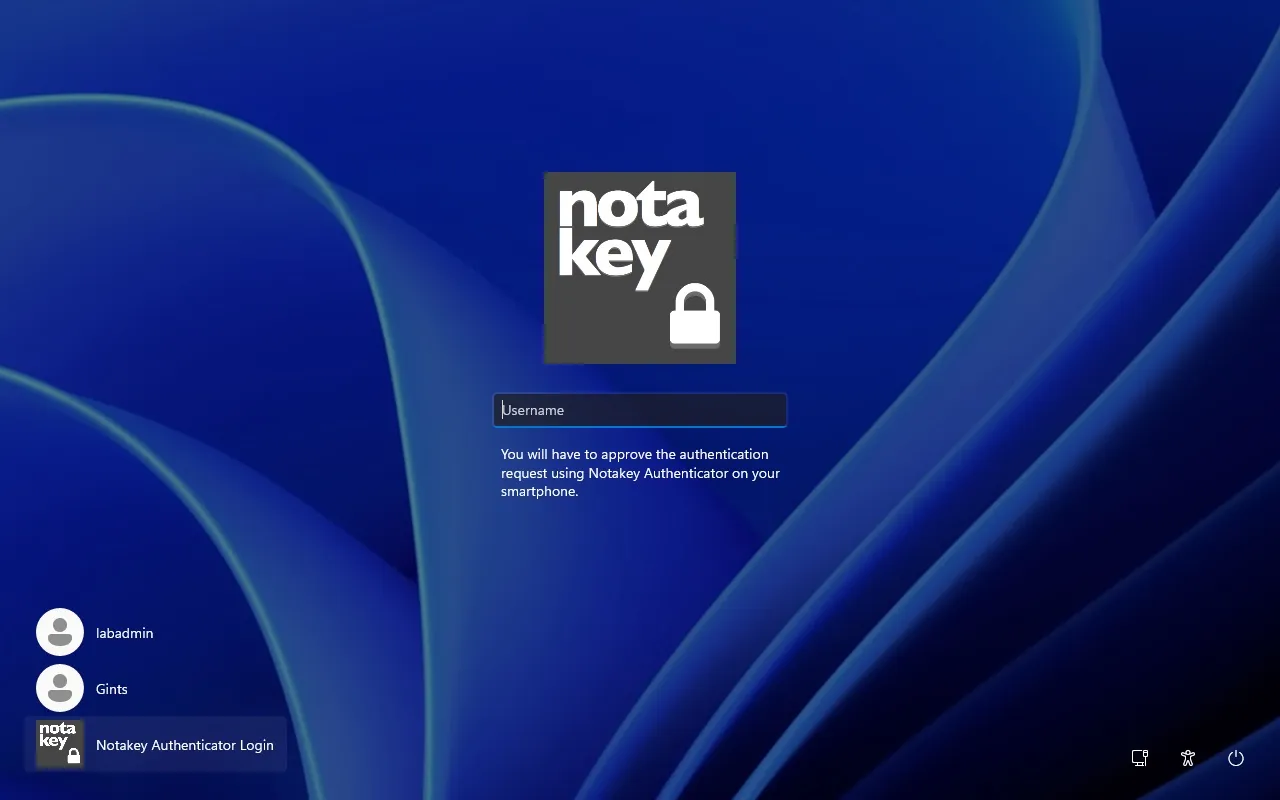
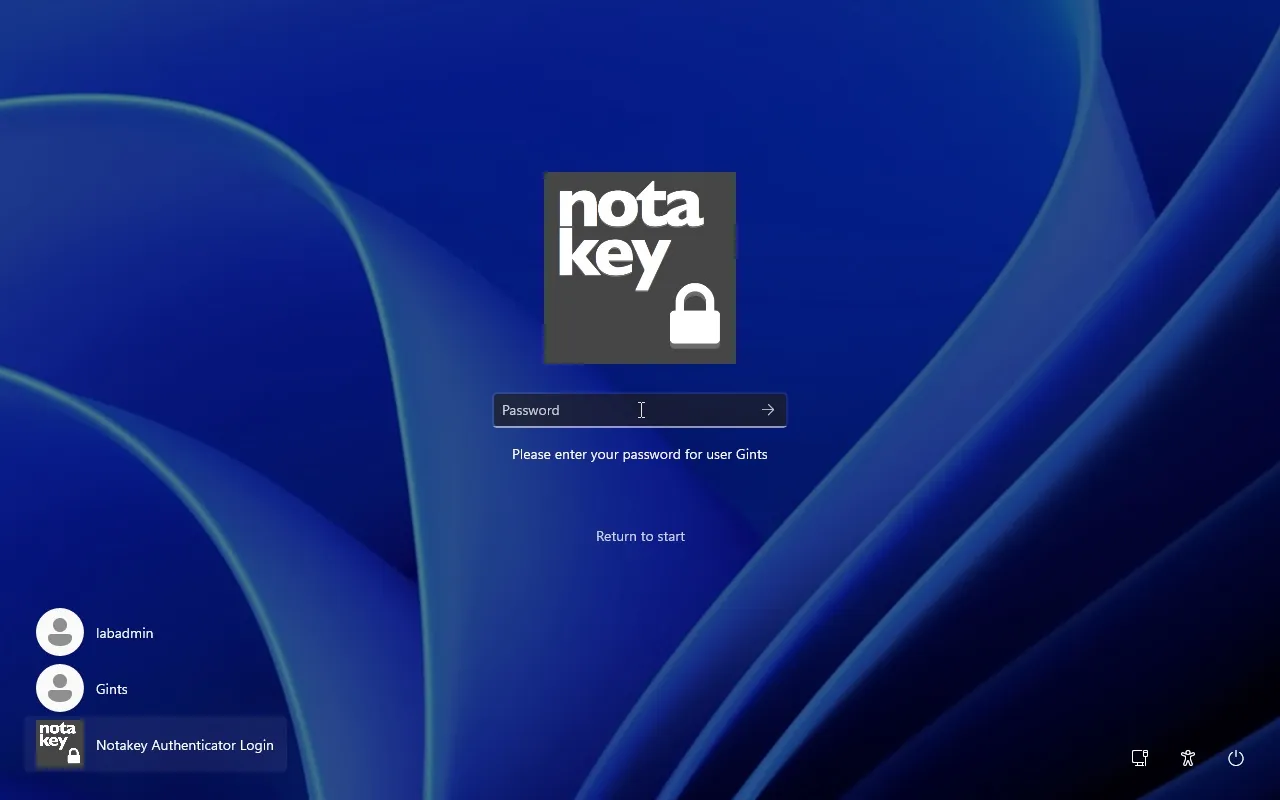
On the first logon the user types the username and presses Enter. The field turns into a password prompt, with a “Return to start” link.
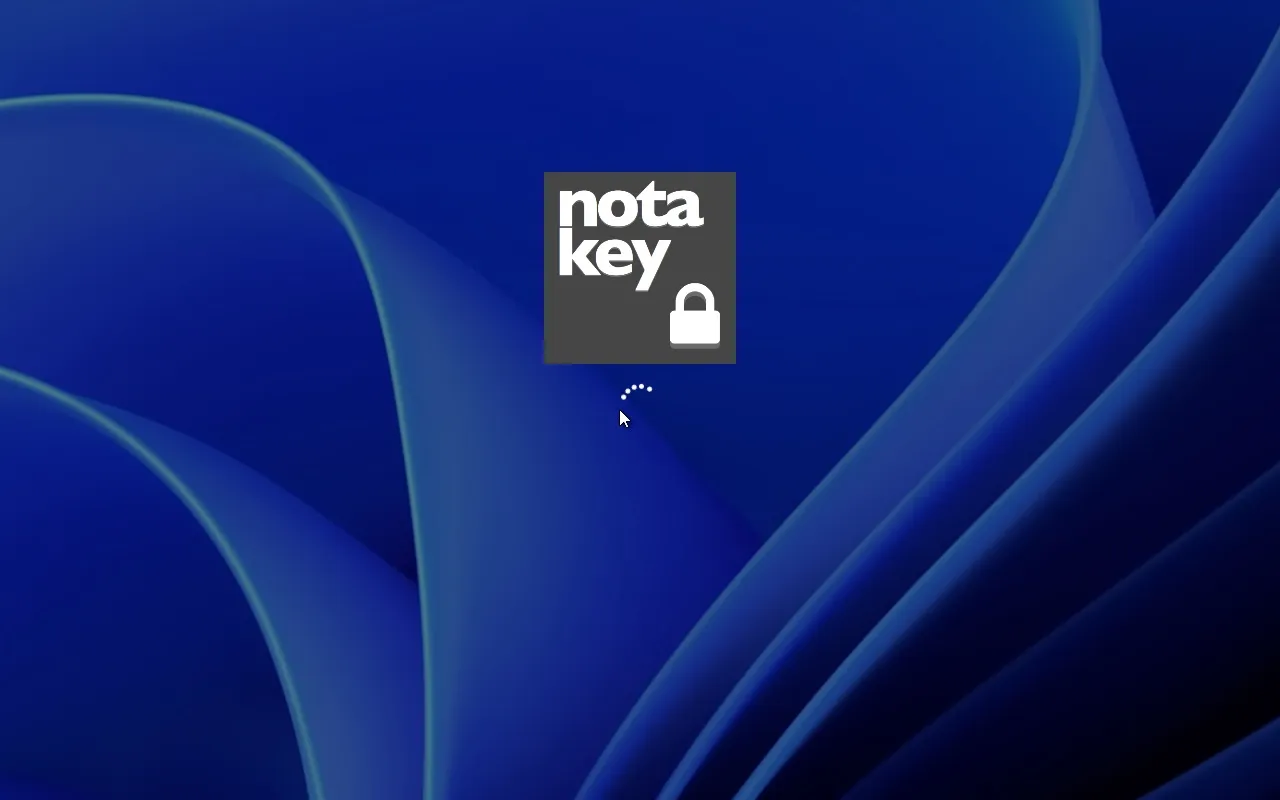
After Enter the screen shows only a spinner. The phone showed the request with the title “Winlogin” and the text “Proceed as {0} on server {1}?”, filled in with the username and the machine name. After approval the desktop loaded, 14 seconds after Enter in our test, most of it spent reaching for the phone.
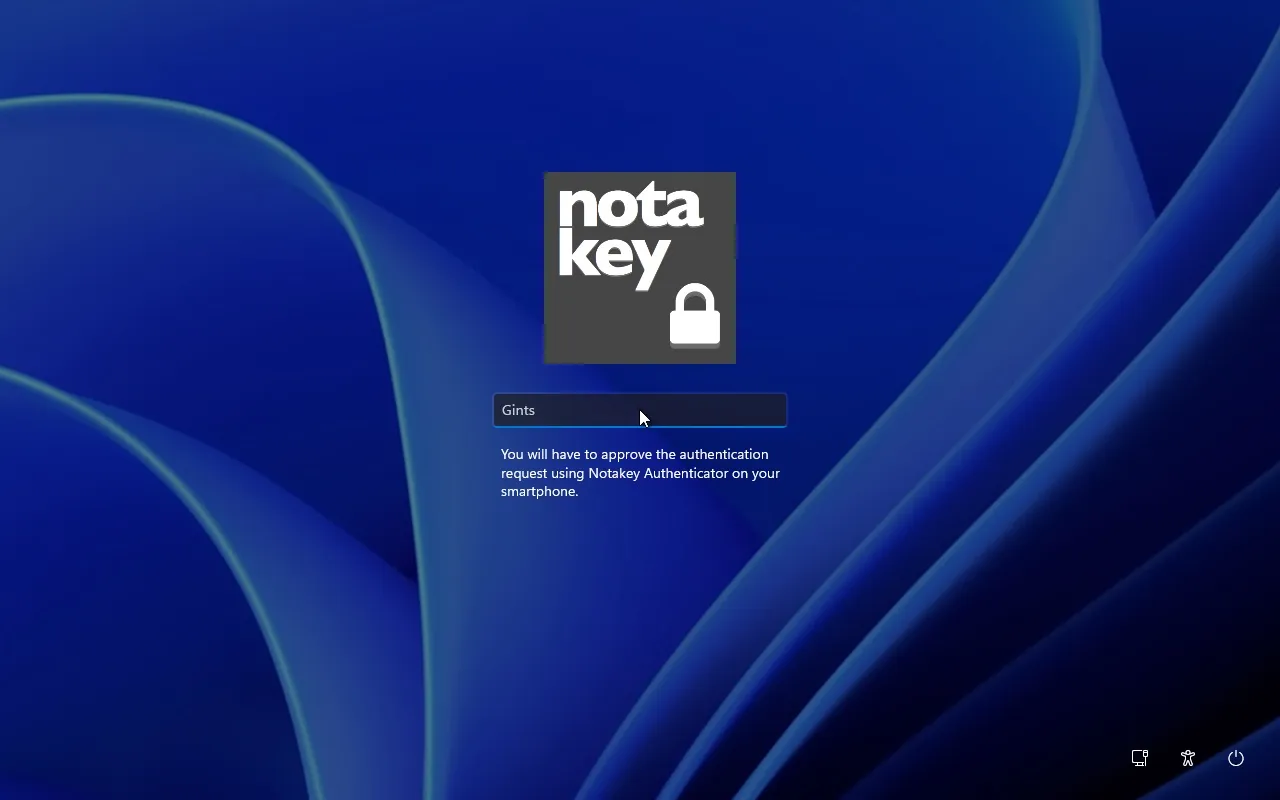
On later logons the tile remembers the last username. Pressing Enter sends
the request, with no password typed; with the phone already in hand, the
desktop appeared about 4 seconds later. When we denied the request on the phone,
nobody was logged in and the screen went back to the tile. When we did not
answer, the screen returned to the tile after 60 seconds, the value of
AuthWaitTimeoutSecs.
We could not observe the password handling, so this part is from the product manual: the password is never sent to the Notakey server. On the first logon it is encrypted on the machine. The ciphertext stays in the machine’s registry, and the key is kept with the user’s Notakey profile and released only after an approved request.
Making it the only way in
While Windows’ own password tiles are there, anyone with the password can
ignore the Notakey tile. To remove them, add a DWORD named Disabled with
value 1 under the key of the built-in password provider:
HKLM\SOFTWARE\Microsoft\Windows\CurrentVersion\Authentication\Credential Providers\{60b78e88-ead8-445c-9cfd-0b87f74ea6cd}In our test the user tiles disappeared, only the Notakey tile remained, and logon with a phone approval kept working.
For a fleet, the Group Policy setting is Computer Configuration → Administrative Templates → System → Logon → “Exclude credential providers”, which takes a list of provider CLSIDs (Microsoft). Windows 11 ships several other providers, such as PIN, Windows Hello face and fingerprint, smart card and FIDO. Any of them that is set up for a user is also a way in, and needs excluding too.
Safe Mode brings the default providers back, by design. It is your recovery path, and also a way round the phone approval for someone with physical access.
Remote Desktop: disabling the password provider is the step that counts
We connected from a FreeRDP client with Network Level Authentication (NLA) on, which is the Windows default.
With the default providers enabled, the correct password alone logged the user in over RDP, and Notakey was never asked. Installing the credential provider does not, by itself, protect RDP.
With the password provider disabled, the same connection passed NLA and then stopped at the logon screen, with no user session; getting further requires the phone approval. Disabling the password provider is therefore what makes an RDP logon two-factor: the user proves the password through NLA when connecting, then approves on the phone at the logon screen.
In the RDP session the logon screen shows the Notakey tile, as it does at
the console. The manual notes that with NLA users are prompted twice, once
by the RDP client and once at the tile, and gives a workaround: turn NLA off
(enablecredsspsupport:i:0 in the .rdp file, and allowing connections
without NLA on the host). We would keep NLA: with it, users must
authenticate before a remote session is established
(Microsoft),
which is worth one extra prompt.
What this does not do
- We have not tested it on a domain-joined machine. The manual states that it works with local and domain users and supports Windows 10 and Windows Server (Windows 8 and Server 2012 or later); our test was Windows 11 24H2 only.
- It needs the appliance. With no network path to the appliance there is no Notakey logon, and with the password provider disabled that means nobody logs in until the path is back, except through Safe Mode. Plan a break-glass account and procedure, and try the setup on one machine first.
- It protects the logon screen, local and over RDP, and nothing else. SMB shares, WinRM and PowerShell remoting, PsExec, scheduled tasks, service accounts and Kerberos tickets already issued never pass through it, and an attacker with a stolen password can still use them. Every MFA product that works at the logon screen has this limit.
- An approval is a tap. A user can approve a request they did not start. The request names the user and the machine, and that text is the defence; see our post on push-bombing. A phone approval is not phishing-resistant in the sense that Windows Hello for Business and FIDO2 keys are.
Where this leaves you
If your machines are joined only to Active Directory, or your servers are reached over RDP without a gateway, a credential provider with the password provider disabled puts a phone approval on the logon screen without a PKI or an RD Gateway. Our comparison with Entra MFA covers where each product fits. Details are on the Windows login page and the Remote Desktop integration; pricing lists the free tier.
Try the live demo to approve a request on your own phone, or request a demo and we will help you plan a pilot on one machine, break-glass procedure included.