If your applications sign users in through Active Directory Federation Services (AD FS), the second factor belongs in AD FS too. The Notakey MFA plugin adds itself to AD FS as an additional authentication method: after the user’s normal sign-in, AD FS asks the plugin, the plugin sends a request to the user’s phone, and the sign-in continues when the user approves it.
We tested it on 19 November 2026: AD FS on Windows Server 2022 in a farm of
two servers, plugin 1.1.68, Notakey appliance 5.2.2, Edge on a Windows 10
machine joined to the domain, and Notakey Authenticator on iOS and Android.
The user in the screenshots is a lab account, skippy@ntklab.internal.
What the user sees
The user signs in to AD FS as before. In our lab that was Windows integrated authentication from a domain machine, so no password was typed; on other clients the user types a password into the AD FS sign-in form.
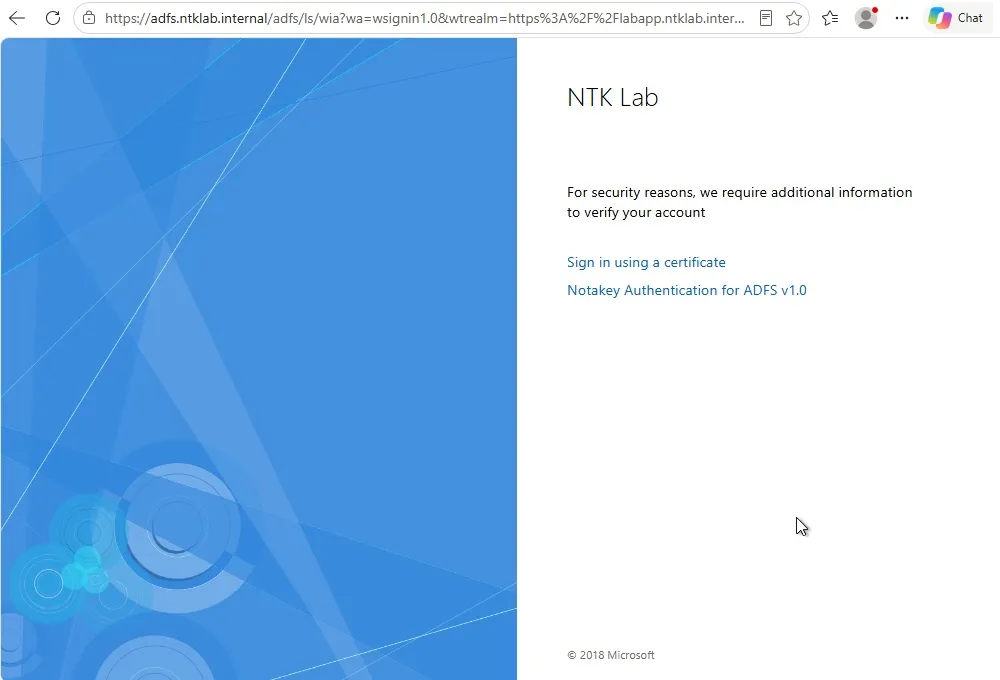
Because the relying party requires MFA, AD FS then asks for an additional method. Our farm also had certificate authentication enabled, so AD FS showed a choice of the two.
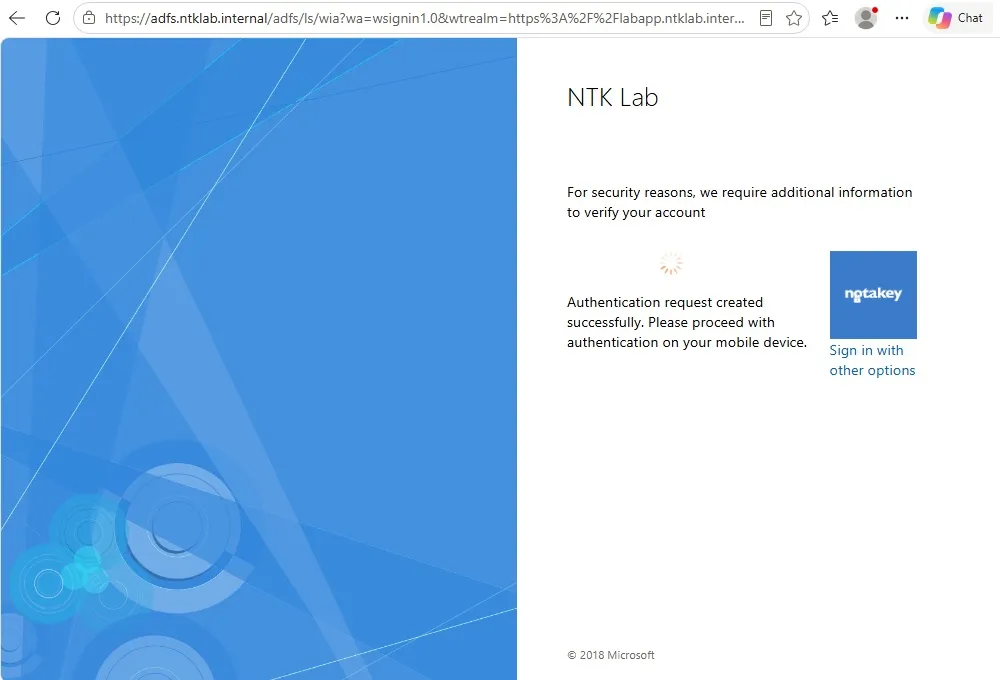
The Notakey page then tells the user to approve on the phone. The page re-submits itself every 3 seconds to check for the answer, so the user does not need to click anything.
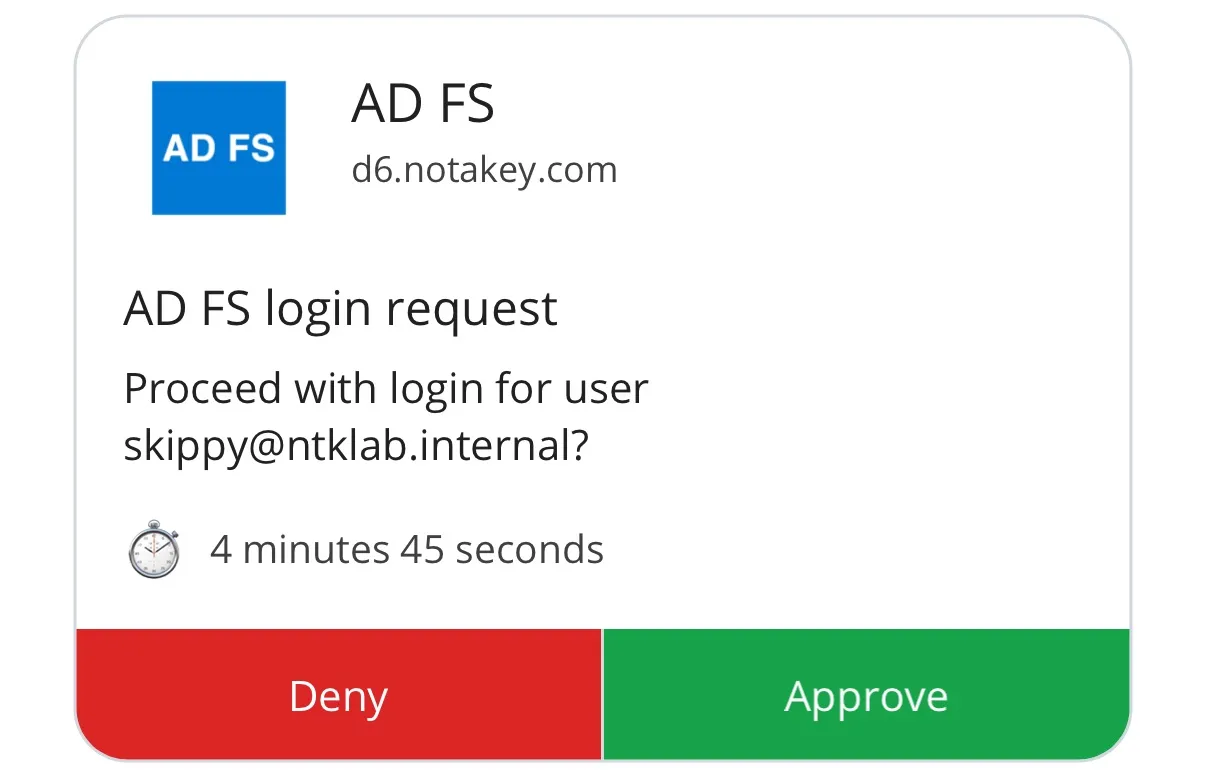
On the phone the request shows which user is signing in.
After the approval AD FS sends the user on to the application. A second sign-in in the same AD FS session did not ask for MFA again.
On the appliance
- A service for AD FS. Its ID goes into the registry on the AD FS servers.
- Users named by their UPN. The plugin uses the identity AD FS passes
to it, the user principal name, as the Notakey user name. In our lab the
user
skippy@ntklab.internalexisted in the service under exactly that name. - At least one onboarding requirement, so that users can add the service in Notakey Authenticator. The first phone approval guide covers this part.
On a single AD FS server
- Download the plugin from the downloads page and check its SHA-256.
- Install the MSI. It copies the files but does not touch AD FS.
- In an administrator PowerShell, run
AdfsPluginInstall.ps1from the program folder. It registers the plugin with AD FS, creates the event log sourceNotakey ADFS, offers to apply an MFA policy and restarts AD FS. - Give the plugin the appliance address and the service ID in the registry, then restart AD FS:
Windows Registry Editor Version 5.00

[HKEY_LOCAL_MACHINE\SOFTWARE\Notakey]

[HKEY_LOCAL_MACHINE\SOFTWARE\Notakey\AdfsMfa]
"ServiceURL"="https://your-appliance.example.com/api/"
"ServiceID"="<service ID>"
ServiceURL must end with /api/. Optional values set how long a request
stays valid (MessageTtlSeconds, 300 seconds by default) and the text the
phone shows (MessageActionTitle, MessageDescription); the
plugin manual lists them all.
Finally, require MFA where you want it, for example with the access control policy “Permit everyone and require MFA” on a relying party.
In a farm: the order matters
In an AD FS farm the plugin is registered once, for the whole farm, but its libraries have to be on every server. A mistake here can silently remove the second factor.
A server that does not have the libraries of the registered version cannot load the Notakey provider, and it does not ask for it. If Notakey is the only additional authentication method, a user who lands on that server signs in without the second factor. AD FS logs event 105 in its admin log on that server, and nothing on the sign-in page shows it.
We saw this in our own lab while preparing this post: the secondary server still had the libraries of an older version while the farm had the new one registered, and it logged event 105 until we installed the new libraries there.
So, in a farm:
- Install the MSI and run
AdfsPluginInstall.ps1on every secondary server first. There the script only installs the libraries. - Set the registry values on every server.
- Install the MSI and run
AdfsPluginInstall.ps1on the primary server. This registers the plugin for the farm. - Restart AD FS on the secondary servers once they have synchronized with
the primary (by default every five minutes; see
LastSyncTimeinGet-AdfsSyncProperties). - Check the AD FS admin log of each server for event 105.
In a farm on SQL Server every server reports itself as primary; run
AdfsPluginInstall.ps1 -LibrariesOnly on all but one server, and the plain
script on the remaining one. Upgrades follow the same order.
Upgrading from 1.1.67 or earlier
Version 1.1.68 contains important security fixes, and we recommend it for
all installations. Install the new MSI over the old one and run the new
AdfsPluginInstall.ps1; do not run the old uninstall script first, because
the old script clears the whole list of additional authentication
providers. If you changed the AD FS Content-Security-Policy header for
older versions, you can return it to the default once all servers in the
farm are upgraded. The plugin manual has
the details.
When something goes wrong
The sign-in page shows the user an error code only. The cause is in the
Application event log of the server that handled the sign-in, source
Notakey ADFS, in an entry that starts with the same code. The two codes
you are most likely to meet:
- 1114: the request could not be created. Usually the user is not in the Notakey service under their UPN, the service ID is wrong, or the appliance cannot be reached.
- 5642: the status of the request could not be checked, because the appliance cannot be reached or does not know the request.
If nothing is logged at all, the event log source is missing: run
AdfsPluginInstall.ps1 on that server and restart AD FS.
What it does not do
- It protects sign-ins that go through AD FS, and only where your policy asks for MFA. Applications that do not use AD FS, and protocols that bypass it, are not covered.
- An approval is a tap. A user can approve a request they did not start, and the user name in the request does not prevent that. See our post on push-bombing.
- It depends on the appliance. If AD FS cannot reach it, sign-ins that require MFA cannot complete. Plan for that before you make the policy apply to everyone.