Version 1.3.8 of the Notakey Windows Credential Provider contains important security fixes. We recommend it for all installations. It replaces every earlier 1.2.x and 1.3.x version. This article shows how to upgrade computers with Group Policy and how to upgrade a single computer by hand.
We tested both ways on 17 November 2026 on Windows 11 Enterprise 24H2 and Windows 10 Enterprise 22H2, upgrading from 1.2.61 and from 1.3.4.
Three rules for every upgrade
- Install the new version over the old one. Do not uninstall the earlier version first. A silent uninstall of an earlier version fails with error 1603 and leaves the computer without the Notakey background service. The 1.3.8 installer replaces the earlier version by itself and keeps the settings in the registry.
- Stop the Notakey service before you start the installer. If the installer has to stop the service itself, Windows starts it again ten seconds later, in the middle of the installation. On Windows 11 this made some of our test upgrades fail with error 1603. When we stopped the service first, every upgrade succeeded. Both procedures below stop the service first.
- Make sure users know their Windows password. After the upgrade each user enters it once at the next logon. This matters most on computers where other sign-in options are disabled.
Download the installer from the downloads page and check its SHA-256 checksum against the value on that page.
Upgrade with Group Policy
Use a computer startup script. It runs as Local System before anybody logs on, so it can stop the service and install the new version without a user.
- Copy
NotakeyWcpInstaller-Release-1.3.8.msito a network share that the computer accounts can read (for example, read access for Domain Computers). - Save the script below as
install-wcp.cmdand change the path in the last line to your share. - In the Group Policy Management Editor open Computer Configuration → Policies → Windows Settings → Scripts (Startup/Shutdown) → Startup, choose Add and select the script.
- Link the policy to the organizational units that contain the computers with the credential provider.
@echo off
set WCPVER=1.3.8
reg query "HKLM\SOFTWARE\Notakey\WindowsCP" /v ProductVersion 2>nul | find "%WCPVER%" >nul && exit /b 0
powershell -NoProfile -ExecutionPolicy Bypass -Command "$s=Get-Service com.notakey.cp.bgs -ErrorAction SilentlyContinue; if($s){ try{$s.WaitForStatus('Running','00:00:30')}catch{}; Stop-Service com.notakey.cp.bgs -Force -ErrorAction SilentlyContinue; try{(Get-Service com.notakey.cp.bgs).WaitForStatus('Stopped','00:00:30')}catch{} }"
msiexec /i "\\server\share\NotakeyWcpInstaller-Release-%WCPVER%.msi" /qn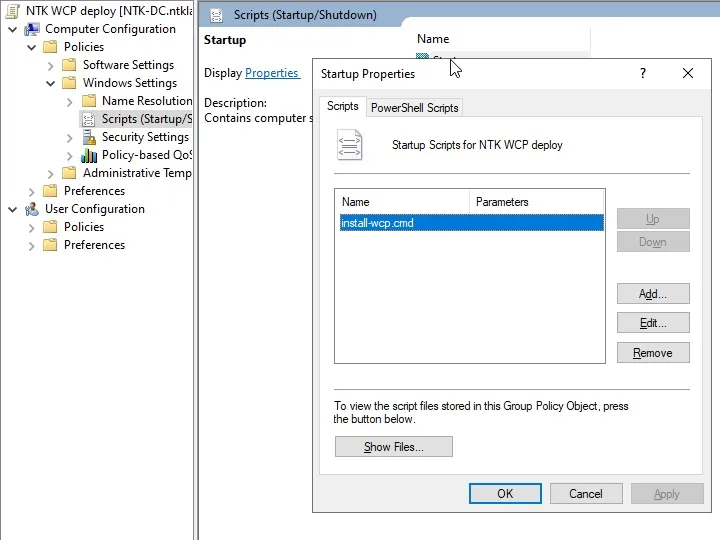
The script does three things: it exits if 1.3.8 is already installed, it stops the Notakey service and waits until it has stopped, and then it runs the installer silently. You can leave it in the policy. On a computer that already has 1.3.8 it does nothing.
Each computer upgrades the next time it starts while connected to the network, so the computers do not have to be upgraded at the same time. If the upgrade fails on a computer, restart it again: the script runs again and repeats the installation.
We do not recommend the Software installation part of Group Policy for this upgrade, because it cannot stop the service before it installs.
Upgrade a computer by hand
Open PowerShell as an administrator, go to the folder that contains the installer and run:
Stop-Service com.notakey.cp.bgs
Start-Process msiexec -ArgumentList '/i NotakeyWcpInstaller-Release-1.3.8.msi /qn' -Wait
Get-Service com.notakey.cp.bgs
(Get-ItemProperty HKLM:\SOFTWARE\Notakey\WindowsCP).ProductVersion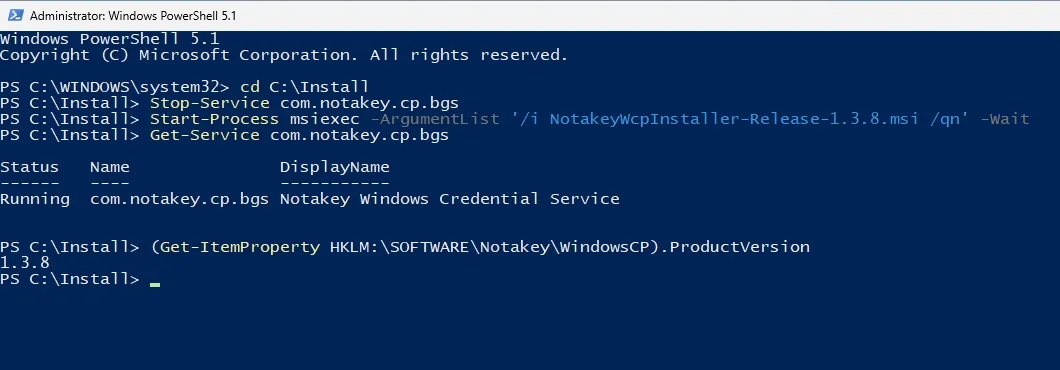
The first command stops the service. The second installs 1.3.8 and waits until the installer has finished. The last two check the result: the service is running and the version is 1.3.8. Restart the computer afterwards.
Software distribution tools that run commands as Local System, such as Microsoft Intune or Configuration Manager, can run the same commands or the startup script from the previous section. We have not tested these tools.
After the upgrade
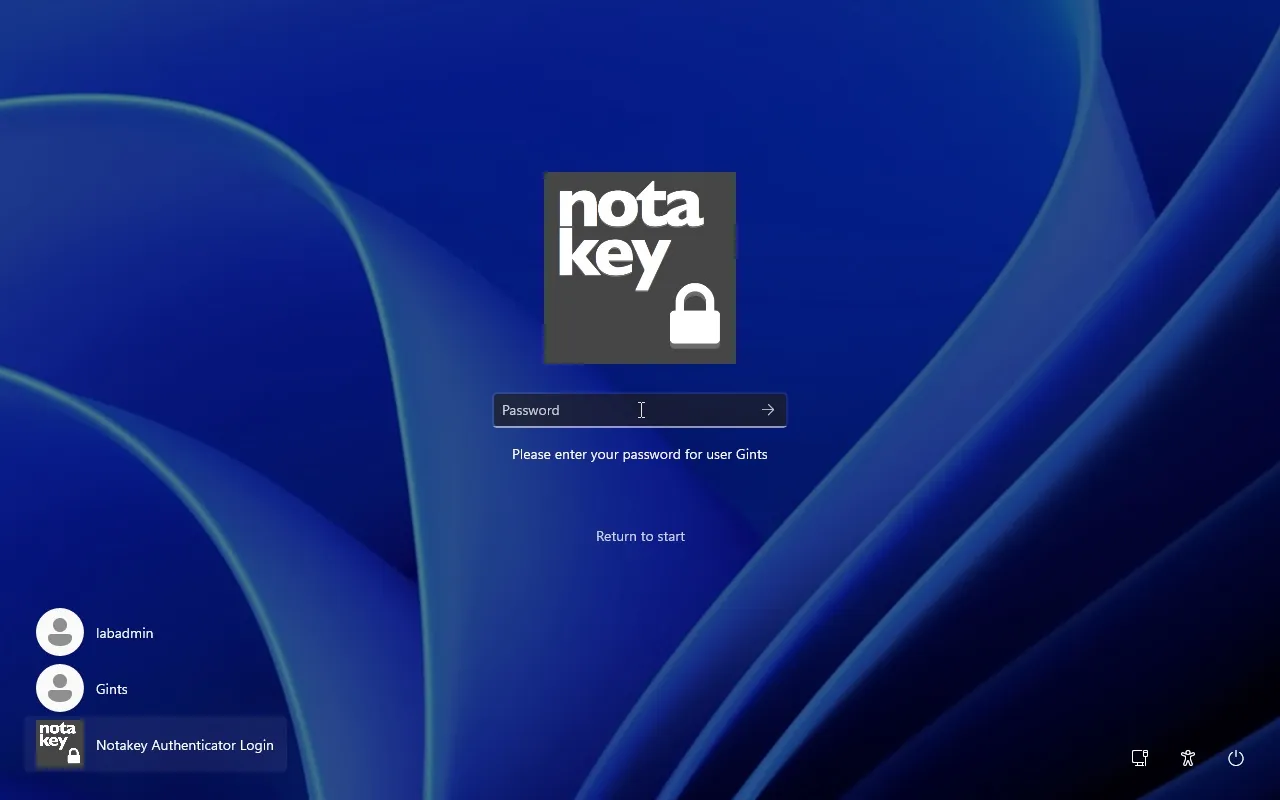
Users enter their password once
Version 1.3.8 removes the credentials cached by the earlier version. At the next logon with Notakey each user enters the Windows password once and approves the request on the phone. After that, logon needs the phone only, as before.
Replace the API client
Do this after the computers have been upgraded. The computers can switch one by one.
- In the Notakey dashboard open API clients and create a new client with the same scopes as the current one. Copy the client ID and the client secret. Do not delete the old client yet.
- Set the
ClientIDandClientSecretvalues underHKLM\SOFTWARE\Notakey\WindowsCPto the values of the new client, in the same Group Policy that distributed them originally, or by hand. - Restart the computers. The service reads the two values only when it starts. A computer that receives new values from Group Policy during startup may start the service before the values arrive; in our test it did. Such a computer uses the new values after one more restart of the computer or of the service.
- Both clients work side by side. Delete the old API client when the computers use the new one. A computer that still uses the old client after that cannot log users on with Notakey until it has received the new values and restarted.
Credential dialogs inside a session
Notakey is no longer offered in credential dialogs that a program opens for a user who is already logged on, such as Run as different user. Logon, unlock, Remote Desktop and the Run as administrator prompt work as before.
If the upgrade fails
The installer reports error 1603 when it cannot finish. After a failed attempt the earlier version keeps working until the next restart. After that restart its background service is gone. To repair this, stop the service if it is still running, run the 1.3.8 installer again and restart the computer.
The full manual is on
documentation.notakey.com. If
an upgrade keeps failing, contact support and include the
installer log. To create the log, add /l*v wcp-install.log to the msiexec
command.