Some logins should not depend on one person alone. A contractor who connects to your network once a month. The server that runs payroll. The firewall’s administrator console. For these, Notakey can ask a second person before the login goes through: the user approves on their own phone, and a named approver approves on theirs.
Notakey has two modes for this:
- Immediate approval. Every login needs both people, then and there.
- Pre-approval. The user asks for a time window in advance, for example two hours. Once the approver has agreed, logins inside that window need only the user’s own phone. Outside it, the login is refused.
This guide shows three uses, all of which we ran in our lab:
- A contractor’s VPN access, for a fixed time (pre-approval).
- A Windows machine that opens only with an approval, at the console and over Remote Desktop (either mode).
- Administrator logins approved by a colleague (immediate approval).
The lab: a Notakey appliance 5.2.4 with users from Active Directory, version 2.0.1 of the Authentication Proxy, FortiGate-VM 8.0.2, Windows 10 with the Notakey credential provider 1.3.8, and the Notakey app on two Android emulators, one for the user and one for the approver. Where we write “in our lab”, we saw it ourselves. Where we did not test something, we say so.
How it works
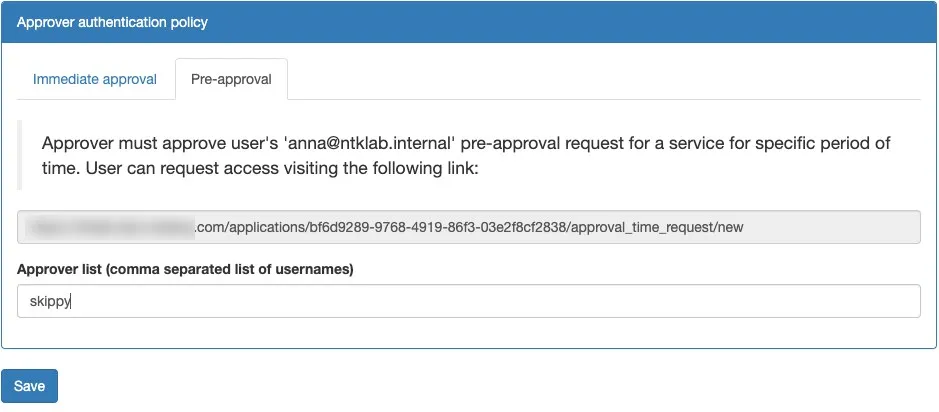
The approver is set per user, in the dashboard of the service the user logs in to: Users → the user → policy. The page has a tab for each mode and a field for the approvers:
The rules:
- The approver must be a user of the same service, with the Notakey app registered to it. Notakey sends the approval request to the approver’s phone through that service. With users from Active Directory, the approver registers the phone like any other user.
- The short Active Directory name is enough. We typed
skippy, and Notakey foundskippy@ntklab.internal. - Several approvers, comma-separated, means any one of them. The first to answer decides, and the request disappears from the other approvers’ phones. Put two names in the list so that a holiday does not lock anyone out.
- A user cannot approve their own request. Notakey rejects self-approval.
- Users without a policy are not affected. The same service can hold contractors who need approval and employees who do not.
The two points about several approvers and self-approval come from the product’s source code. Our lab had one approver, and we did not try to name a user as their own approver.
Scenario 1 — A contractor’s VPN access for two hours
A support engineer from your supplier needs to reach one system this afternoon. Their account exists all year, but you want it to work only when someone inside has agreed.
Setup. Give the contractor’s user a pre-approval policy, with the person who manages the contract as the approver. The Pre-approval tab shows a link to the request page. Send that link to the contractor with their account details.
Asking for access. Before connecting, the contractor opens the link, types their user name and picks a duration: 15 or 30 minutes, 1, 2, 8 or 16 hours, 1, 2, 3 or 7 days, or one month.
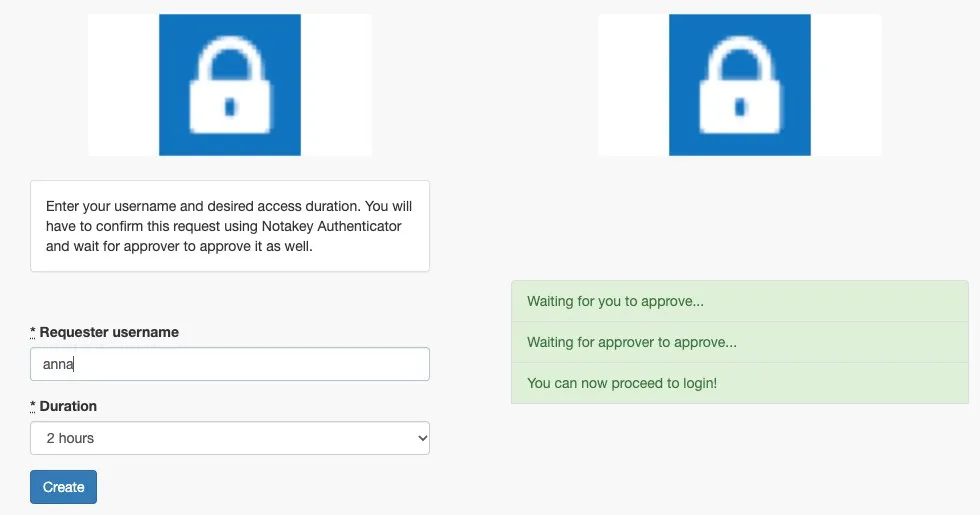
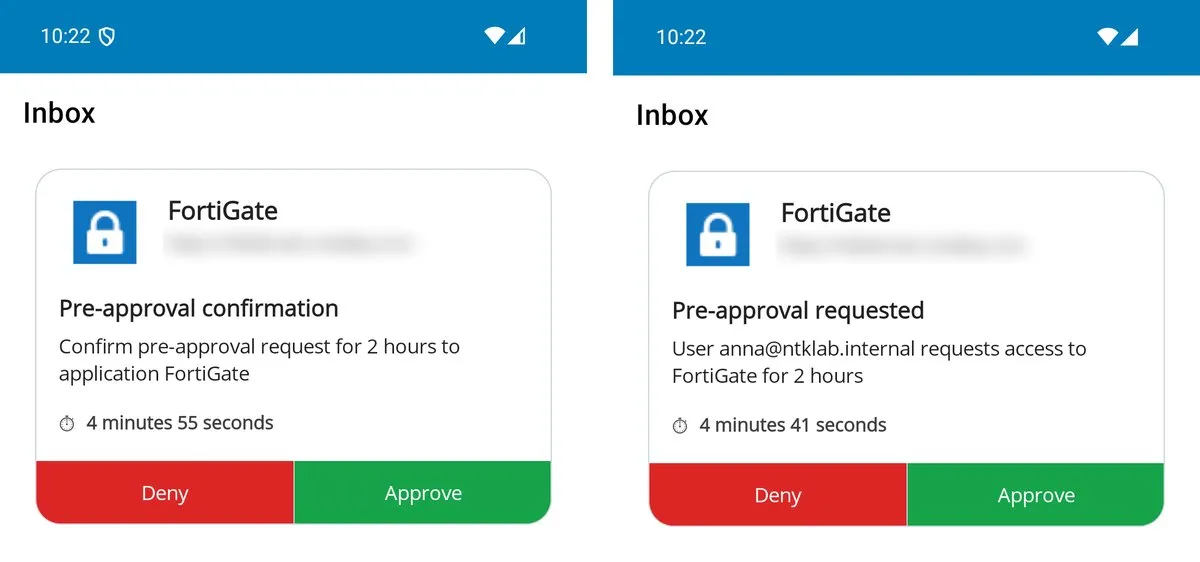
The page needs no password, but it cannot be used to give someone else access. Two phones have to agree. First the contractor confirms on their own phone, then the approver approves on theirs:
Connecting. Inside the window, the contractor logs in to the VPN as usual and approves on their own phone. The approver is not asked again. In our lab the FortiGate VPN login went through 5 seconds after the RADIUS request, and the approver’s phone received nothing.
Outside the window, Notakey refuses the login before anything reaches a phone. In our lab the FortiGate got an Access-Reject at once. The VPN client shows an ordinary login failure, with no hint about the request page. Tell contractors in advance: if the VPN refuses you, ask for access with the link first.
The window runs out on its own. Nobody has to remember to disable the account afterwards.
Scenario 2 — A Windows machine that opens only with an approval
The payroll server, the machine that holds the signing keys, the jump host into production: machines where a login should not depend on one person.
Setup. Install the Notakey credential provider on the machine and make Notakey the only way in. Our guide Windows logon with a phone approval describes both steps. The second matters most for Remote Desktop: as long as the Windows password provider stays enabled, a password alone opens an RDP session. Then give the users of that machine an approver policy in the Notakey service the credential provider uses.
With pre-approval, a user asks for a window for the shift (“8 hours”), the manager approves once, and every logon during the shift needs only the user’s phone. In our lab a domain user logged in at the console during an approved window with their own approval only. After the window ran out, the same logon was refused and the tile showed “Error occured while processing authentication request.” That message does not say why, so tell users about the request link.
With immediate approval, every logon asks both phones. In our lab the
user approved after 3 seconds and the approver after 9, and the desktop
opened. The credential provider creates the request with a lifetime of
MessageTtlSeconds (30 seconds by default), and the logon screen waits
AuthWaitTimeoutSecs (60 seconds) for the answer. We tested only answers
inside 30 seconds, and we did not test longer values. That is short for two
people. For machines that people use every day, pre-approval is the more
practical mode.
Remote Desktop uses the same credential provider as the console. We tested the approval policy at the console. Phone approval over RDP was tested earlier, as described in the guide above.
Scenario 3 — Administrator logins approved by a colleague
Firewall and server administrators can change everything. With immediate approval on their Notakey users, an administrator login waits until a colleague has also approved it.
We set this up on a FortiGate whose RADIUS logins go through the Notakey
Authentication Proxy, as in our
FortiGate guide. We tested it with
the FortiGate’s RADIUS test command, diagnose test authserver. It sends the
same kind of request as an administrator login (RADIUS with PAP) through the
same proxy. We did not open an administrator session with a second approval.
| Approver answered | Proxy waiting time / FortiGate timeouts | Result in our lab |
|---|---|---|
| after ~12 s | 30 s / 60 s | login accepted |
| denied | 30 s / 60 s | login refused |
| after ~75 s | 30 s / 60 s | login refused when the proxy stopped waiting at 30 s |
| after ~50 s | 120 s / 120 s | login accepted after 54 s |
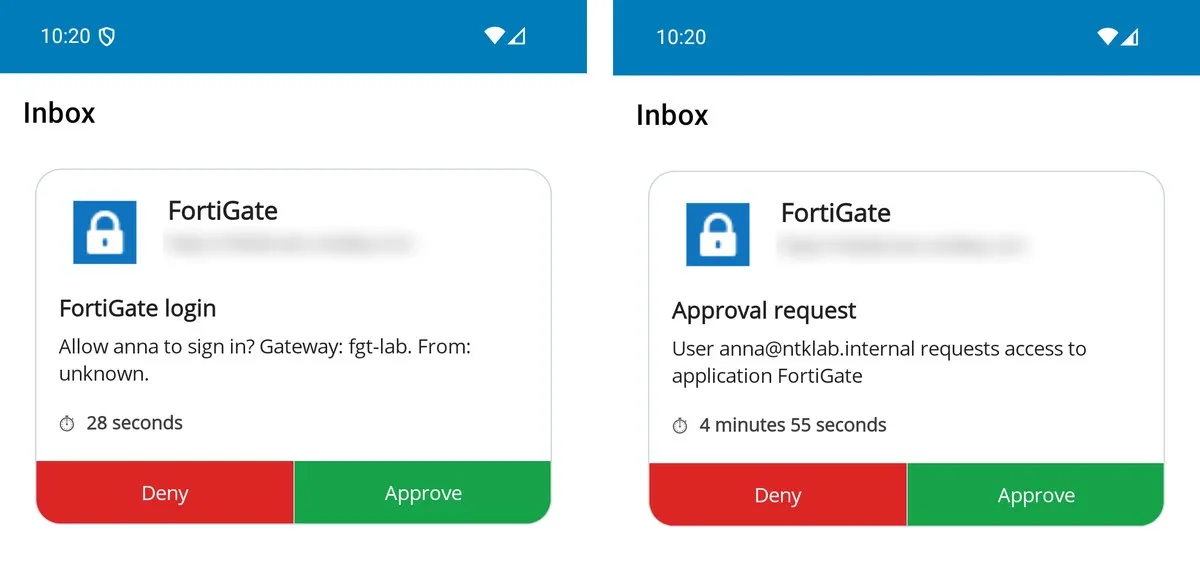
Two people need more time than one. Raise the proxy’s waiting time, and the FortiGate’s two RADIUS timeouts above it:
ntk cfg setc :ap.vpn_message_ttl 120
ntk ap restart
config user radius
edit "notakey-proxy"
set timeout 120
next
end
config system global
set remoteauthtimeout 120
endThe proxy takes 5 to 300 seconds. Choose a value that your gateway accepts and that your approvers can actually meet.
Keep the local emergency administrator described in the FortiGate guide. It does not depend on Notakey, and it does not depend on a colleague either.
What the approver sees, and what not yet
The approver’s phone shows who wants in and which service, and with pre-approval also for how long. It does not show the user’s own request text: no gateway, no source address, no description of an action. That is enough to answer “may Anna use the VPN now?”. It is not enough to approve the contents of a payment or a document, so we do not offer it for that yet.
Some other limits in version 5.2.4:
- One of the listed approvers is enough. “Two of four” is not possible.
- Policies are set user by user in the dashboard, not by group.
- The event log records every answer, with the user, the device and the address it came from. The approver’s entry does not name the request it approved, so match the two by time.
- An approval request stays on the approver’s phone for five minutes, even after the login has given up. In our lab, approving it after the FortiGate had refused the login let nobody in.
These are on our development list.
Before you switch it on
- Make sure every approver has registered the app to the same service, and test one login per approver.
- List at least two approvers per user.
- For immediate approval, raise the timeouts as shown above before the first real login, not after the first failed one.
- Tell users how the refusal looks (a plain VPN failure, or “Error occured…” on Windows) and where the request link is.
- Tell approvers the one rule that matters: approve only what you expect. A request you cannot place is a reason to call the user, not to tap Approve.
Summary
| Use | Mode | Setting to watch |
|---|---|---|
| Contractor or vendor VPN | Pre-approval, 1–8 hours | send the request link with the account |
| Windows machine, console or RDP | Pre-approval per shift, or immediate | Notakey-only logon; MessageTtlSeconds 30 s with immediate approval |
| Administrator logins | Immediate | :ap.vpn_message_ttl and gateway RADIUS timeouts, 120 s in our lab |