This guide is for companies whose users live in Active Directory and whose FortiGate lets them in with a password. Once this guide is set up, three kinds of login also need an approval on the user’s phone:
- Remote-access VPN. IPsec dial-up with IKEv2, the way FortiClient connects.
- Administrator logins to the FortiGate itself, over SSH and in the web console.
- Web access through the FortiGate’s proxy. The user signs in once in the browser, with OpenID Connect.
The password stays in Active Directory and is checked there. Who may use the VPN and who may administer the firewall is still decided by AD groups. The Notakey appliance adds the phone.
We ran everything below in our lab:
- FortiGate-VM 8.0.2 with an evaluation licence;
- a Notakey appliance 5.2.4 with version 2.0.1 of the Authentication Proxy;
- a Windows Server 2022 domain controller with Network Policy Server (NPS);
- the Notakey app on an Android emulator.
The VPN client was strongSwan, an open-source IPsec client. We did not test FortiClient itself. Some FortiGate-side tests (the timeouts, a wrong VPN password and the named administrators) ran earlier in the same lab with FreeRADIUS instead of NPS checking the password. Where we write “in our lab”, we saw it ourselves. Where we did not test something, we say so.
How it fits together
VPN and admin logins:
FortiGate ──RADIUS──▶ Notakey auth-proxy ──RADIUS──▶ NPS ──▶ Active Directory
                              │                       (password, group)
                              └──▶ request ──▶ user's phone

Web access through the proxy:
FortiGate ──OpenID Connect──▶ Notakey service ──▶ Active Directory (password)
                                      │
                                      └──▶ request ──▶ user's phone
VPN and administrator logins go over RADIUS. The FortiGate asks the Notakey Authentication Proxy. The proxy first lets NPS check the password against AD. If NPS says yes, the proxy asks the user on the phone. Only when both say yes does the FortiGate get an Access-Accept. NPS also tells the FortiGate which group the user is in, so a VPN user does not become a firewall administrator.
Web access through the proxy goes over OpenID Connect. The FortiGate sends the browser to the Notakey service. Notakey checks the AD password itself and then asks the phone.
What the user sees
The user types the AD user name and password as before. With the message text from step 3, the phone shows a request with the user name, the gateway and the address the login comes from:
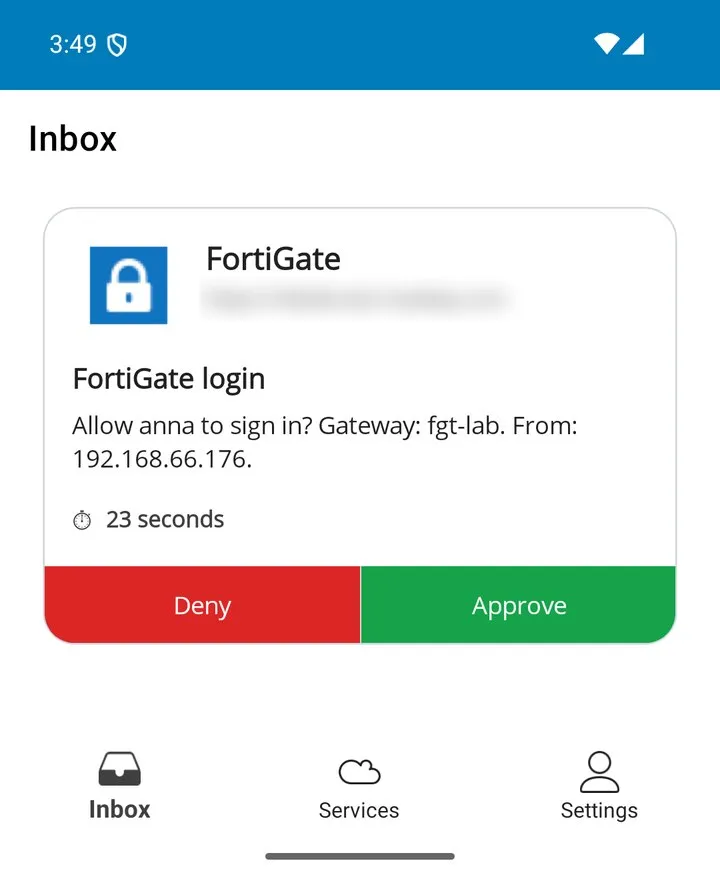
The address is what the FortiGate reports in Calling-Station-Id. For the IPsec
VPN it was the address of the VPN client. The FortiGate’s own test command,
diagnose test authserver, sends no address, and the line then reads
“From: unknown”.
Step 1 — A Notakey service with your Active Directory as the user source
In the Notakey dashboard, create a service for the FortiGate (we called it “FortiGate”). Under User sources, add an Active Directory source:
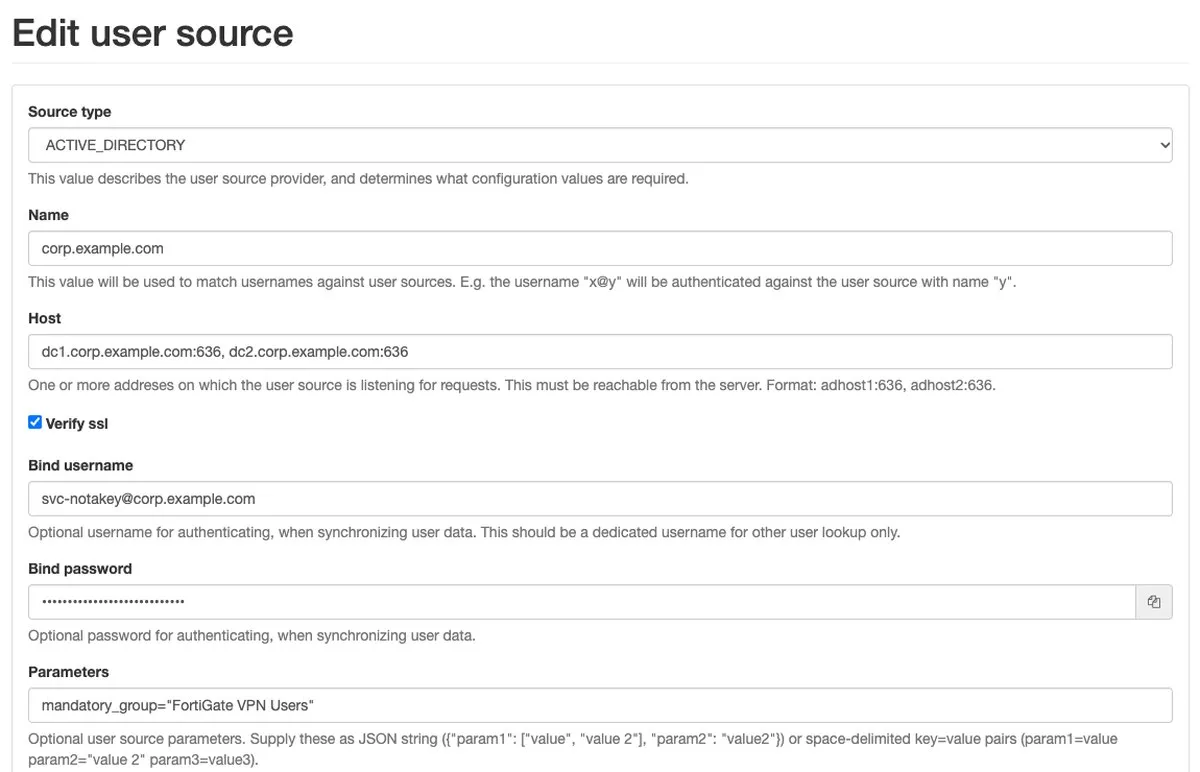
- Name is your AD domain. A user who types
annais looked up asanna@corp.example.com. - Host takes one or more domain controllers with their port.
- Bind username is a dedicated read-only account that Notakey uses to look users up. Give it no rights beyond reading users.
- Parameters:
mandatory_grouplimits the service to one AD group. Only members of that group can register a phone.
Two things we learned here:
- Put the group name in quotes when it has spaces.
mandatory_group=FortiGate VPN Userswithout quotes is read asmandatory_group=FortiGateplus two other words. In our lab the lookup then answered “User is not a member of required groups” for a user who was a member. Withmandatory_group="FortiGate VPN Users"the same user was found. - Use port 636 (LDAPS). Notakey checks a user’s AD password by signing in to the domain controller with it: when the user registers the phone, and at every OpenID Connect sign-in (Part 3). Notakey encrypts the connection only on port 636. On any other port, 389 included, the bind account’s password and the users’ passwords cross the network in clear text. Give the domain controllers by the DNS names in their certificates. In our lab the controller had a certificate from the domain’s own certification authority (AD CS), and port 636 worked. With the domain controller policy “LDAP server signing requirements” set to “Require signing”, which Microsoft recommends, port 389 was refused (“Stronger Auth Needed”) and port 636 kept working. Allow only port 636 from the appliance to the domain controllers, and keep that path on a network you control.
The user source page has a User lookup test: type a user name and, optionally, the password. Run it before you go further.
Then enable the onboarding requirement Simple Credentials. Users register their phone in the Notakey app with their AD user name and password; Notakey checks both against AD. In our lab a user from the group registered the phone this way.
Step 2 — Network Policy Server: password check and group
NPS checks the password and tells the FortiGate the user’s group. On the NPS server:
- Add a RADIUS client. Under RADIUS Clients and Servers → RADIUS Clients, add the Notakey appliance. Use the address its RADIUS requests come from and a long random shared secret. The FortiGate itself is not an NPS client: it talks only to the proxy.
- Add one network policy per role. We used two:
| Policy | Condition: Windows group | Vendor-Specific attribute returned |
|---|---|---|
| FortiGate admins via Notakey | FortiGate Admins | Fortinet-Group-Name = fgt-admins |
| FortiGate VPN via Notakey | FortiGate VPN Users | Fortinet-Group-Name = fgt-vpn |
Put the admins’ policy first. NPS uses the first policy that matches, so an
administrator who is in both groups gets fgt-admins.
In each policy, under Constraints → Authentication Methods, allow
EAP-MSCHAP v2 (for the VPN, which uses EAP) and Unencrypted
authentication (PAP, SPAP) (for administrator logins, which use PAP). Under
Settings → Vendor Specific, add an attribute with vendor code 12356
(Fortinet), attribute number 1, format String, value fgt-admins or
fgt-vpn.
Check that no other policy above or below them lets any domain user in. Our lab NPS had an older test policy that matched every request. Requests from users outside both groups would have fallen through to it, so we switched it off.
NPS and signed replies
The proxy by default drops a reply from a RADIUS server that is not signed
with the Message-Authenticator attribute. That protects against forged
replies (the Blast-RADIUS attack published in 2024). Our lab NPS did not sign
its replies. The proxy dropped them and logged
server_reply_no_message_authenticator, and the login timed out.
Our lab NPS was an unpatched Windows Server 2022 build from 2022. We have not
tested whether an updated server signs its replies. Install the current
Windows updates first and try the default. If the proxy still logs
server_reply_no_message_authenticator, accept unsigned replies from that
server only, as shown in the next step, and keep the path between proxy and
NPS on a network you control.
If you script NPS with netsh
We first created the policies with netsh nps add np. The Vendor-Specific
value arrived with its first byte missing, and the FortiGate did not
recognise the group: the administrator login was refused after the phone
approval. It took an extra leading 00 in
the hex value to make it right. netsh nps set np replaced the whole profile of the policy
(its authentication methods too), and changes took effect only after the NPS
service restarted. Use the NPS console instead.
Step 3 — The Authentication Proxy on the appliance
On the Notakey appliance, point the proxy at the “FortiGate” service, list the FortiGate as its only gateway and NPS as its password server:
ntk cfg setc :ap.vpn_access_id <access ID of the FortiGate service>

ntk cfg setc :ap.clients '[
  { "name": "fortigate", "address": "192.0.2.1", "secret": "<secret of the FortiGate>" }
]' --json-input

ntk cfg setc :ap.servers '[
  { "name": "nps", "address": "192.0.2.50", "secret": "<secret of the NPS client>",
    "requireMessageAuthenticator": false }
]' --json-input

ntk ap validate
ntk ap restart
Leave out "requireMessageAuthenticator": false if your NPS signs its
replies. With it, the proxy warns at every start, as a reminder.
The text on the phone comes from the proxy’s messageDescription. Show the
user name, the gateway and the address, so that the user has something to
judge:
ntk cfg setc :ap.config '{"notakey":{"messageTitle":"FortiGate login",
  "messageDescription":"Allow {user} to sign in? Gateway: {gateway}. From: {address}."}}' --json-input
The user name the FortiGate sends is what the user typed, for example anna.
In our lab the proxy matched anna to the Notakey user
anna@corp.example.com, because simplified user names were on for the
service. The other settings that make the proxy safe are in
Setting up the Authentication Proxy securely.
Step 4 — The FortiGate: RADIUS server, timeouts, groups
On the FortiGate, add the proxy as a RADIUS server and raise two timeouts:
config user radius
    edit "notakey-proxy"
        set server "192.0.2.10"
        set secret <secret of the FortiGate>
        set auth-type pap
        set timeout 60
    next
end
config system global
    set remoteauthtimeout 60
end
192.0.2.10 is the appliance. set auth-type pap matters for administrator
logins: with the default auto, the FortiGate tries several methods one
after the other. The VPN uses EAP regardless of this setting.
FortiOS 8.0 requires the Message-Authenticator on replies from a RADIUS
server by default (require-message-authenticator, not shown by show). The
proxy signs every reply, so leave it on.
Why both timeouts
Both default to 5 seconds, and the proxy gives the user 30 seconds to decide. In our lab:
user radius timeout |
remoteauthtimeout |
Approval after 15 s |
|---|---|---|
| 5 | 5 | fails |
| 60 | 5 | fails |
| 5 | 60 | fails |
| 60 | 60 | tunnel up (also after 23 s) |
With the defaults, the FortiGate gave up after 5 seconds (“Connection with
… timed out”) and did not send the request again. The phone still
showed the request, and the user’s approval then went nowhere. Raise both
values above the proxy’s waiting time (vpn_message_ttl, 30 seconds by
default).
Groups from NPS
Two FortiGate user groups take the group name that NPS sends:
config user group
    edit "vpn-users"
        set member "notakey-proxy"
        config match
            edit 1
                set server-name "notakey-proxy"
                set group-name "fgt-vpn"
            next
            edit 2
                set server-name "notakey-proxy"
                set group-name "fgt-admins"
            next
        end
    next
    edit "fw-admins"
        set member "notakey-proxy"
        config match
            edit 1
                set server-name "notakey-proxy"
                set group-name "fgt-admins"
            next
        end
    next
end
Administrators get fgt-admins from NPS, so vpn-users accepts both names:
administrators can use the VPN too. In our lab the proxy passed the NPS
attribute on to the FortiGate unchanged.
Part 1 — Remote-access VPN (IPsec dial-up)
FortiOS 8.0 on our VM had no SSL VPN tunnel mode: only the web portal was left. Remote access with a client is IPsec. A dial-up tunnel with IKEv2, where the user signs in with EAP:
config vpn ipsec phase1-interface
    edit "dialup"
        set type dynamic
        set interface "port1"
        set ike-version 2
        set peertype any
        set net-device disable
        set mode-cfg enable
        set proposal aes256-sha256
        set dhgrp 20 14
        set eap enable
        set eap-identity send-request
        set authusrgrp "vpn-users"
        set ipv4-start-ip 10.212.134.10
        set ipv4-end-ip 10.212.134.20
        set ipv4-netmask 255.255.255.0
        set psksecret <pre-shared key>
    next
end
config vpn ipsec phase2-interface
    edit "dialup-p2"
        set phase1name "dialup"
        set proposal aes256-sha256
    next
end
port1 is the interface the clients connect to. Then a firewall policy
from the tunnel to what VPN users may reach:
config firewall policy
    edit 0
        set name "vpn-users-in"
        set srcintf "dialup"
        set dstintf "<internal interface>"
        set srcaddr "all"
        set dstaddr "<what VPN users may reach>"
        set action accept
        set schedule "always"
        set service "ALL"
    next
end
Create the policy before the first test. Without a policy that uses the tunnel, in our lab the FortiGate answered the client with “no proposal chosen”, and its debug log said “ignoring IKEv2 request, no policy configured”. The message points at the wrong thing.
What we saw with strongSwan as the client, EAP-MSCHAPv2 checked by NPS:
- Approve: the tunnel came up and the client got its address from the pool. The proxy passed the EAP exchange between FortiGate and NPS through unchanged and asked the phone once per login, after NPS had accepted the password.
- Wrong password (tested with FreeRADIUS as the password server): the password was rejected, no request reached the phone, and the client got the failure at once.
We did not test FortiClient, so we have not seen what it shows the user.
Part 2 — Administrator logins
For administrators, use a wildcard administrator tied to the admins’ group:
config system admin
    edit "ad-admins"
        set remote-auth enable
        set wildcard enable
        set remote-group "fw-admins"
        set accprofile "super_admin"
        set vdom "root"
    next
end
Any member of the AD group “FortiGate Admins” then logs in with their own AD name and password and approves on the phone. In our lab:
- SSH and the web console both worked. The FortiGate waited for the phone: SSH logins went through with approvals after 5 and 20 seconds, and the web console with an approval after 17 seconds.
- When we removed the user from “FortiGate Admins”, NPS returned
fgt-vpnand the FortiGate refused the administrator login. The phone was still asked first, because the FortiGate checks the group only after the RADIUS accept.
For administrators who only need to read, use a separate access profile
instead of super_admin.
Do not use named administrators with a local password
A FortiGate administrator can also be a single named account with
set remote-auth enable. When you create one, the FortiGate insists on a
local password for it. In our lab that password was a way around the phone:
- While the proxy answered, the local password was refused.
- With the proxy stopped, the FortiGate waited out its timeout. After about 60 seconds it let the administrator in with the local password alone, without the phone.
We found no setting that switches this fallback off. The wildcard administrator above stores no local password, so there is none to fall back to. If you must use named administrators, set their local passwords to long random values that nobody keeps.
The account name must also match the Notakey user name. An administrator
named fgtadmin, which was not a Notakey user name, was rejected by the proxy
as an unknown user (“the password was accepted, but the name is not a user of the Notakey
service”).
Keep one local emergency administrator
Keep the built-in local administrator, or one local account, with a long
password kept sealed, and allow it only from your management network
(set trusthost1 on the account). That is the way in when the appliance or
NPS is down. Note that the FortiGate locks an address out for 60 seconds
after three failed administrator logins (admin-lockout-threshold,
admin-lockout-duration). You are likely to hit this while testing.
Part 3 — Web access through the explicit proxy (OpenID Connect)
FortiOS 8.0 can send users of its web proxy to an OpenID Connect provider to sign in, and a Notakey service can be one. The browser is sent to the Notakey service, the user signs in with the AD name and password, and approves on the phone. After that the FortiGate knows who is behind that address, and its proxy policy decides what the user may reach.
In FortiOS 8.0 we found the OpenID Connect settings used only for this kind of authentication (web proxy and captive portal). For VPN and administrator logins the FortiGate offers SAML and RADIUS, not OpenID Connect. Fortinet’s own documentation describes this feature for FortiProxy; we did not find it described for FortiGate. The configuration below is what worked on our FortiGate-VM 8.0.2.
On the Notakey side
On the “FortiGate” service, open OpenID Connect configuration → Configure, check Enabled, and leave Require password and Require mfa on. With the AD user source from step 1, the password is the AD password. Then add a client under Clients → New client:
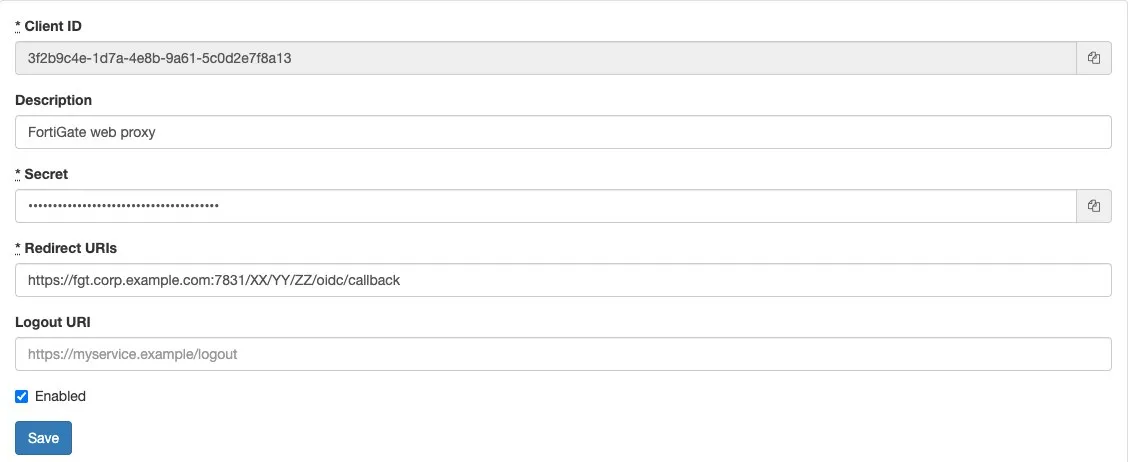
The redirect URI is the FortiGate’s captive portal name, port 7831 and the
fixed path /XX/YY/ZZ/oidc/callback. Copy the client ID and the secret.
On the FortiGate
config user oidc
    edit "notakey-oidc"
        set discovery-url "https://<Notakey dashboard>/oidc/services/<access ID>/.well-known/openid-configuration"
        set client-id "<client ID>"
        set client-secret <secret>
        set user-attr-name sub
    next
end
config user group
    edit "web-users"
        set member "notakey-oidc"
    next
end
config authentication scheme
    edit "notakey-oidc"
        set method oidc
        set oidc-server "notakey-oidc"
    next
end
config authentication rule
    edit "notakey-oidc"
        set srcaddr "all"
        set active-auth-method "notakey-oidc"
    next
end
config firewall address
    edit "fgt-portal"
        set type fqdn
        set fqdn "fgt.corp.example.com"
    next
end
config authentication setting
    set captive-portal "fgt-portal"
end
config web-proxy explicit
    set status enable
    set http-incoming-port 8080
end
config system interface
    edit "<internal interface>"
        set explicit-web-proxy enable
        set proxy-captive-portal enable
    next
end
config firewall proxy-policy
    edit 0
        set proxy explicit-web
        set dstintf "<internet interface>"
        set srcaddr "all"
        set dstaddr "all"
        set service "webproxy"
        set action accept
        set schedule "always"
        set groups "web-users"
    next
end
fgt.corp.example.com must resolve, for the users’ browsers, to the
FortiGate address they use as their proxy. In the browsers’ proxy settings,
let the Notakey dashboard address bypass the proxy. Otherwise the sign-in
page itself needs a sign-in. Fortinet’s FortiProxy documentation gives the
same advice for its identity providers.
What went wrong on the way, so that you can skip it
In our lab, in the order we met them:
- The OpenID Connect entry needs a name of its own. A name already used by a RADIUS server is refused (“is already used by radius server”).
- Without a captive portal in
authentication setting, the proxy answered every request with an HTTP 500 error. The debug log (diagnose wad debug enable category auth) said “auth.captive_portal is null”. - The captive portal by IP address was not enough. The browser was sent
to port 7831 of the FortiGate, and nothing answered there. With the
portal given as an FQDN address, the FortiGate said “Please enable
proxy-captive-portal on interface”. With
proxy-captive-portal enable, port 7831 answered. - “Failed to parse OIDC token”. The FortiGate takes the user name from
the
emailclaim by default. The ID token of a Notakey service carries the user name insuband has noemail, so the FortiGate found no user name. Withset user-attr-name subthe sign-in completed.
After that, diagnose wad user list showed the user with
auth_method : OpenID Connect, and web pages loaded through the proxy.
The user name differs from the VPN
Over OpenID Connect, the FortiGate saw the user as anna@corp.example.com,
the Notakey user name. Over RADIUS, the same person was anna, as typed. If
you write policies or reports by user name, account for both forms.
How long a sign-in lasts
The Notakey service keeps its own OpenID Connect session for 8 hours by default (Session inactivity timeout and Session max duration, 28 800 seconds). In our lab a second sign-in within that time went straight through, without password or phone. That is single sign-on as intended. Decide whether 8 hours is right for you, and set the FortiGate’s authentication timeout to match.
Before you switch it on for everyone
- Test with an administrator session open, and keep it open until the emergency account has worked once.
- Give the FortiGate two proxies (two appliances or two cluster nodes) as its RADIUS servers. Keep both timeouts above the proxy’s waiting time, so that the FortiGate does not turn to the second proxy while the user is still deciding at the first. We did not test two proxies behind one FortiGate.
- Never give the FortiGate NPS itself as a second RADIUS server. If the FortiGate turned to NPS while the proxy waits for the user, the login would pass with the password alone.
- Tell users the one rule that matters: a request you did not start is someone else with your password. Deny it and change the password.
Summary
| Where | Setting | Why |
|---|---|---|
| Notakey user source | mandatory_group="<group with spaces>" in quotes |
without quotes only the first word is used |
| Notakey user source | LDAPS (636), domain controllers by DNS name | other ports send the AD passwords unencrypted |
| NPS | one policy per AD group, Fortinet-Group-Name (12356, 1) | the FortiGate tells VPN users from administrators |
| Proxy | requireMessageAuthenticator: false only if NPS does not sign |
otherwise the proxy drops the replies |
| FortiGate | user radius timeout 60 and remoteauthtimeout 60 |
both default to 5 s; the user has 30 s |
| FortiGate | firewall policy for the dial-up tunnel | otherwise “no proposal chosen” |
| FortiGate administrators | wildcard admin with remote-group |
named admins fall back to their local password, without the phone, when the proxy does not answer |
| FortiGate OpenID Connect | user-attr-name sub, FQDN captive portal, proxy-captive-portal enable |
otherwise the sign-in fails |